
 Workflow Templates
The workflow template enables users to design multiple processes covering development, testing, and production release based on specific project needs, thereby standardizing and streamlining the project delivery process.
# New Template
# Create in the Template Library
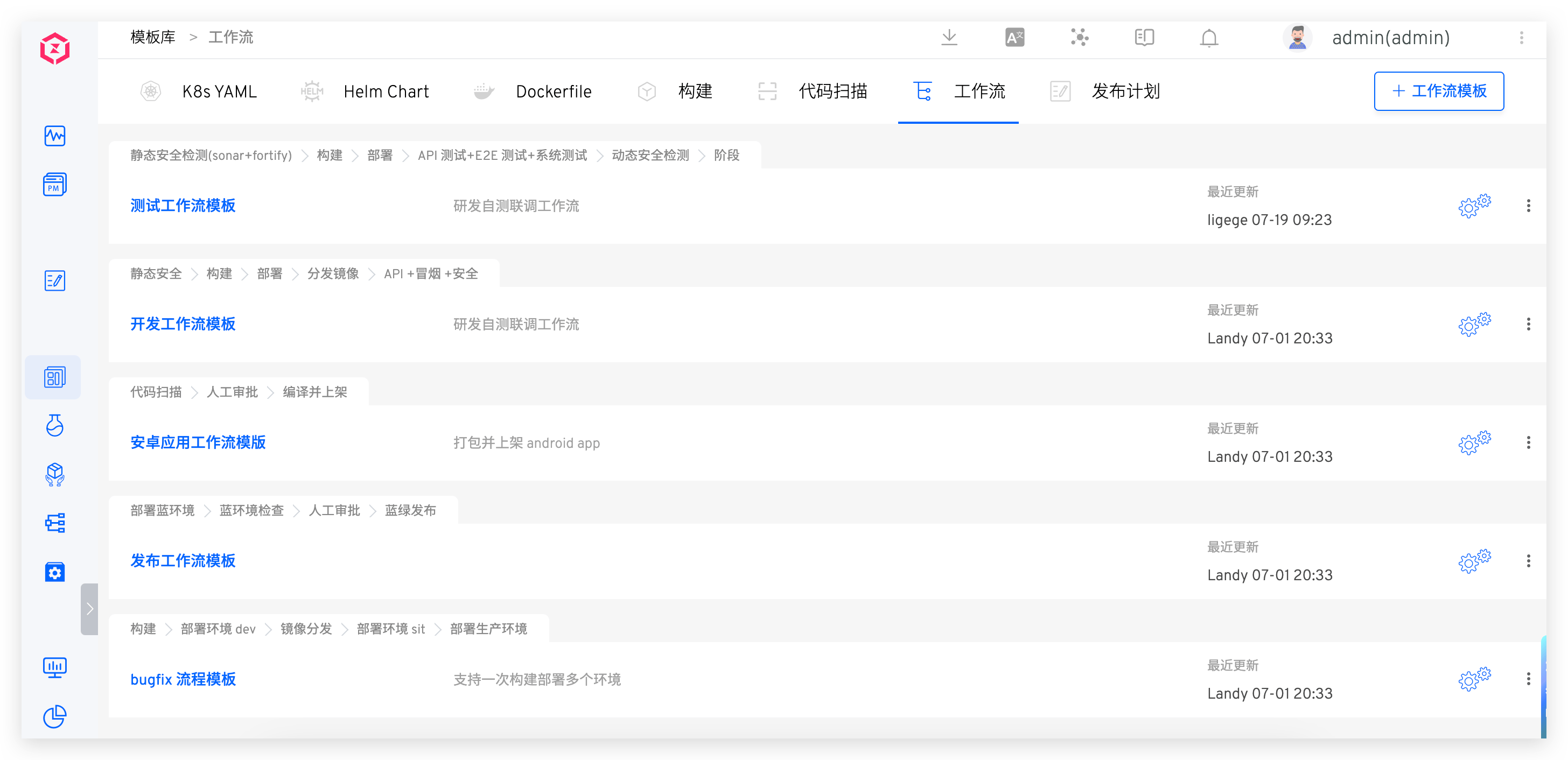
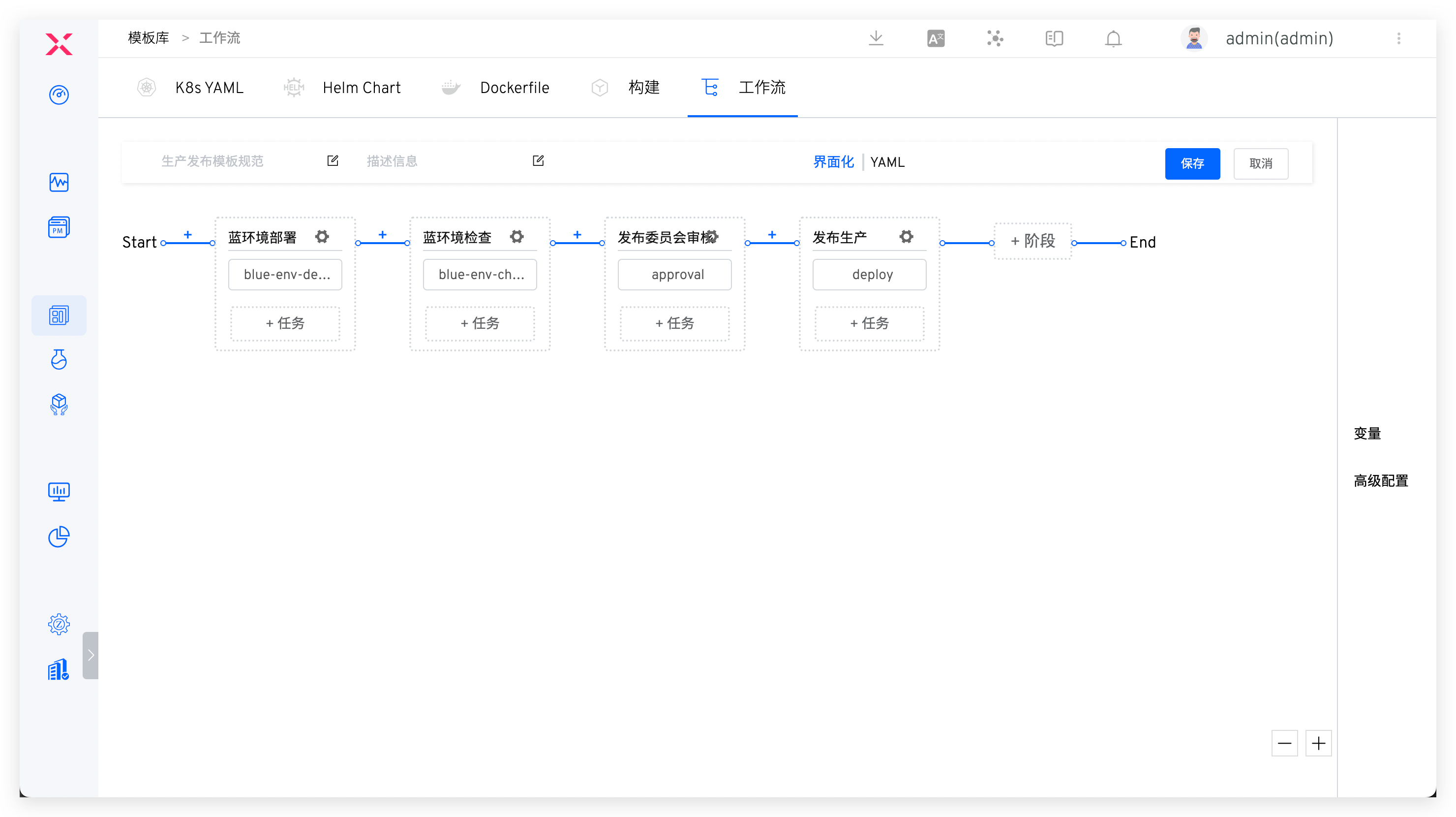
Go to Assets → Templates → Workflow in sequence, click +Workflow Template, fill in the template name and content, and save it.
The workflow template name must be unique throughout the system.
# Save an Existing Workflow as a Template
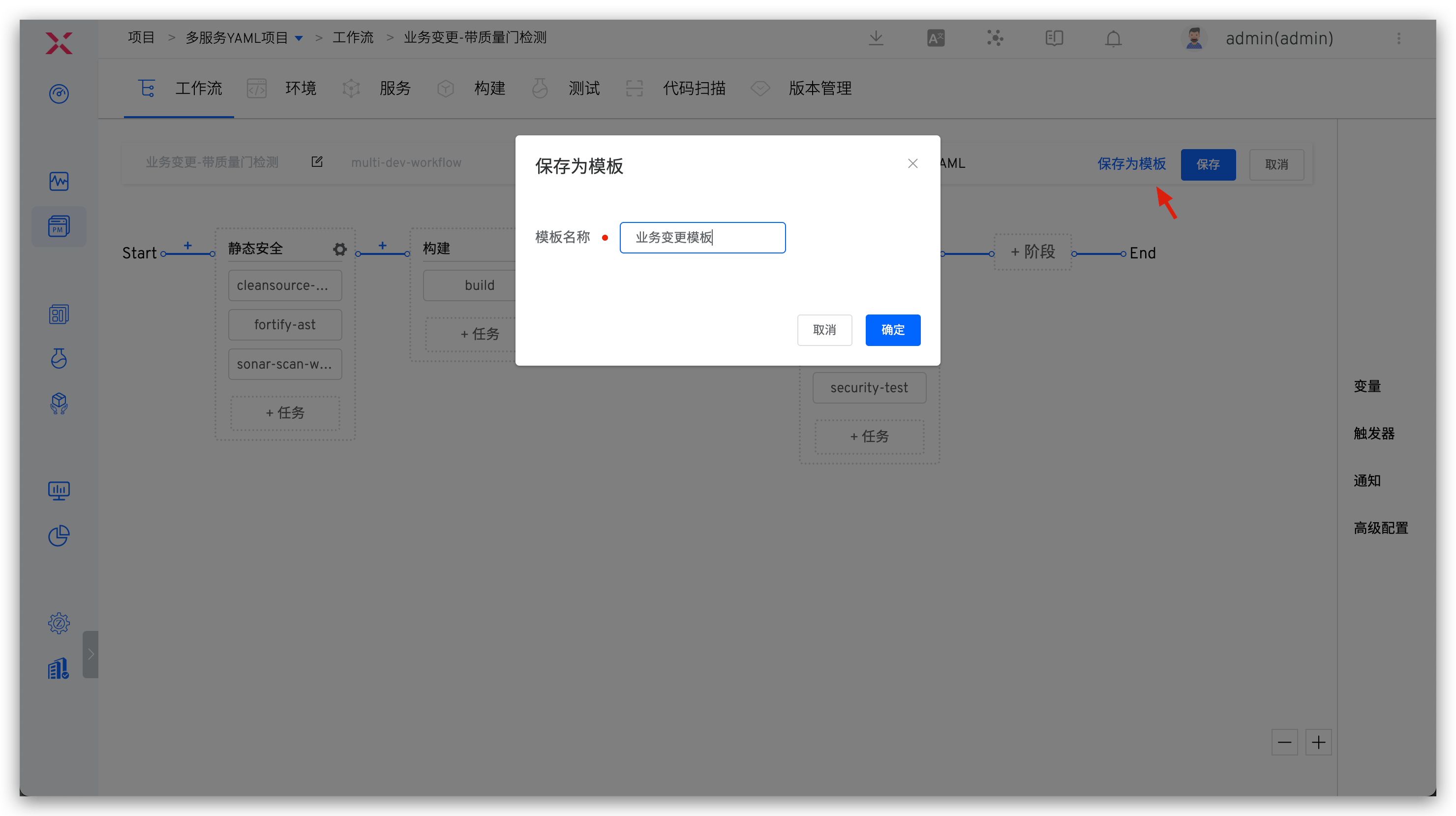
Edit the workflow, click Save as Template and define the template name in the pop-up window. After confirmation, the workflow will be saved as a template.
When saving as a template, ensure the template name is unique.
# Using Templates
To create a new workflow, you can manually configure it or use a workflow template with one click.
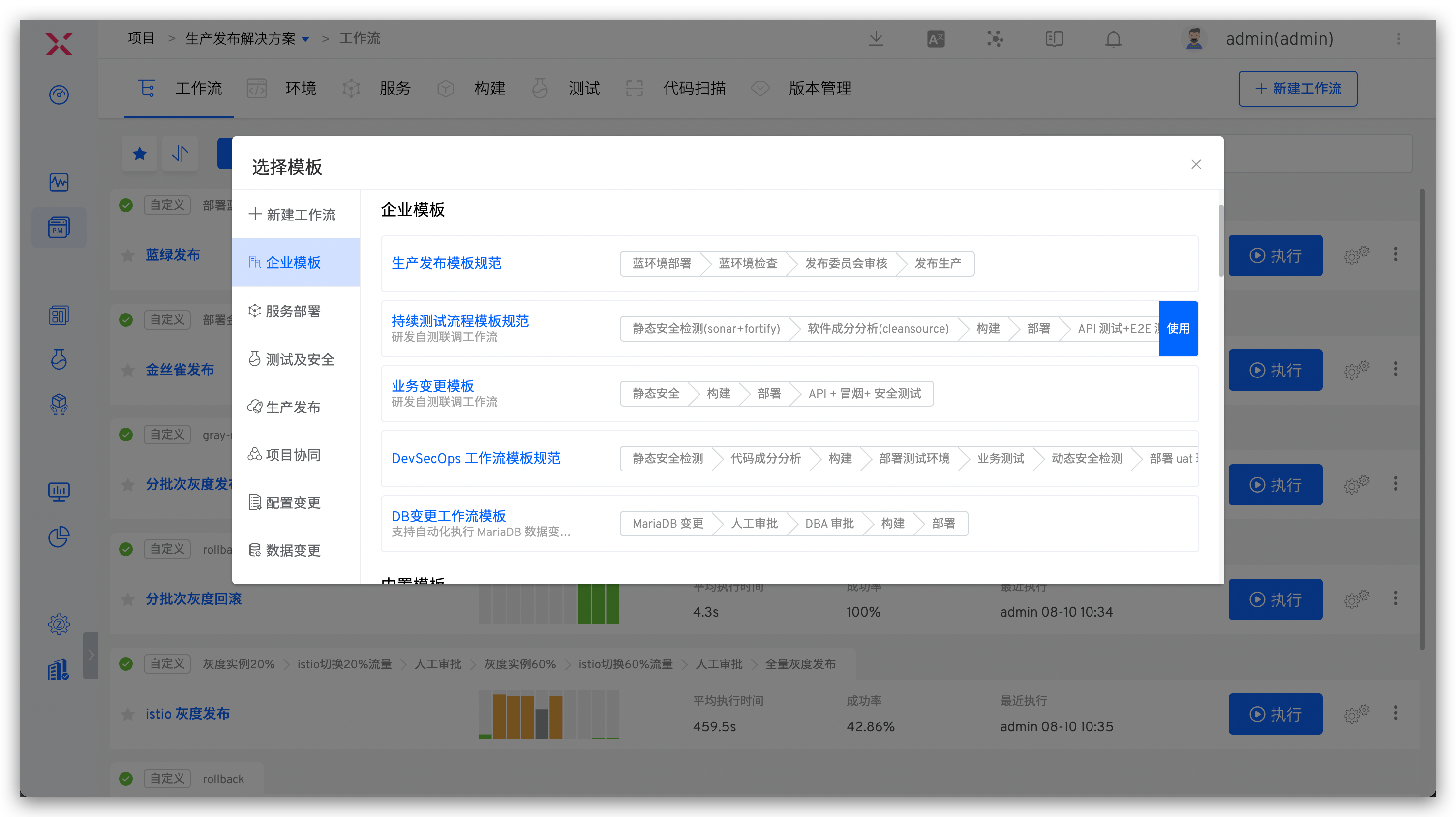
The enterprise templates are those created by users. Additionally, the system provides a large number of built-in templates that can be selected based on actual needs to achieve rapid workflow configuration.
Tip
Built-in templates are not visible in the template library and cannot be modified or deleted.

